How to install Basnetg NewsLine template for Blogger
- Download the template Zip Folder from Download Link above.
- extract all with help of win zip.
- Upload template XML file to blogger .
Configure Your Meta Tags
- Find below meta tags and change description and keywords in red with your blog description and keywords. Separate keywords with comma.
<meta content='DESCRIPTION HERE' name='description'/>
<meta content='KEYWORDS HERE' name='keywords'/>
How to change Header Logo
- Go to Dashboard Click Template option from Dashboard
- Now click on Edit HTML tab.
- Click on Proceed tab
- Now Find this code :
<div id='left_header'><a expr:href='data:blog.homepageUrl'><img height='80' src='https://blogger.googleusercontent.com/img/b/R29vZ2xl/AVvXsEj972uLkJ1yl7z0ABfLyDCPiMM3jkdUp40RaT585WBprYqZzcSbiTqC7lfvqc2aM5vRUbHv1f70BLShwU-4ZcQrV5ZxrtjiKg9V8Rc5yxfKItti_GjGGwn6wg28UYkkiV4CyHuMMa8o2J4/s1600/NewsLinebasnetg.png' width='320'/></a>
</div>
<!-- left_header ends //-->5. Then Replace your LOGO image URL with Red coloured image link above.Logo size : width= 320px and Height = 80 pxHow to Add Ads right side of Header LogoTo add advertisements to the right side of Header logo Go to Dashboard , Edit HTML
- Find this code:
<div id='right_header'>
<a href='#' target='_blank'><img height='80' src='https://blogger.googleusercontent.com/img/b/R29vZ2xl/AVvXsEiC2SqC2hJBLMq48tc_WkQTQcHtUPkNsl7Qgdd-zEUcQHJctENQ4xzsxTBViEriBaYIGIeMvS3iDMy6qILno5r4xRMo1U8kAhvOL8qqeVxRN1cGt4k0L0sZL6o6BlktWAe3wtdLUkxwFcg/s1600/ads260.png' style='margin-right:5px; margin-top:10px;' width='260'/></a><a href='#' target='_blank'><img height='80' src='https://blogger.googleusercontent.com/img/b/R29vZ2xl/AVvXsEiC2SqC2hJBLMq48tc_WkQTQcHtUPkNsl7Qgdd-zEUcQHJctENQ4xzsxTBViEriBaYIGIeMvS3iDMy6qILno5r4xRMo1U8kAhvOL8qqeVxRN1cGt4k0L0sZL6o6BlktWAe3wtdLUkxwFcg/s1600/ads260.png' style='margin-right:5px; margin-top:10px;' width='260'/></a></div><!-- right_header ends //-->Ads size: width= 260px and Height = 80 px2. Change Red color URL with your Ads Image host URL.How to Edit Menu Bar 1. To edit Menu find the code below:<div id='menu'>
<div id='center'>
<div id='head_menu'><ul>
<li><a expr:href='data:blog.homepageUrl'>HOME</a></li>
<li><a href='#'>NEWS</a></li>
<li><a href='#'>ENTERTAINMENT</a></li>
<li><a href='#'>FINANCE</a></li>
<li><a href='#'>SPORTS</a></li>
<li><a href='#'>LITERATURE</a></li>
<li><a href='#'>ARTICLES</a></li>
<li><a href='#'>MOVIE</a></li>
<li><a href='#'>FASHION</a></li>
<li><a href='#'>FOOD</a></li>
<li><a href='#'>DOWNLOADS</a></li>
</ul>
</div>
</div>
</div><!-- menu ends //-->2.Now Replace your Link URL with # and menu link name to your.How to Customize Labels for Homepage 1. To show labels or categories in Homepage, find the code below:label1 = "AMERICAS";label2 = "AMERICAS";label3 = "AMERICAS";label4 = "AMERICAS";label5 = "AMERICAS";label6 = "AMERICAS";label7 = "AMERICAS";label8 = "AMERICAS";label9 = "AMERICAS";label10 = "AMERICAS";label11 = "AMERICAS";label12 = "AMERICAS";label13 = "AMERICAS";label14 = "AMERICAS";Now change the value of each red coloured label(AMERICAS) to the Label you want to show in homepage.How to add or change 250x60px ads and epapers banners
- Go to Dashboard and Click on Layout section
- Now you will find HTML/Javascript widget on the right hand side titled "Top_right Ads"
- Click on Edit
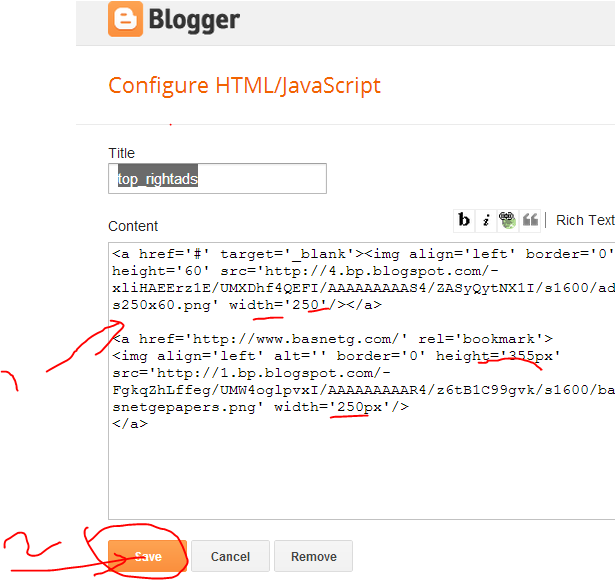
- Now the widget will be displayed like below:
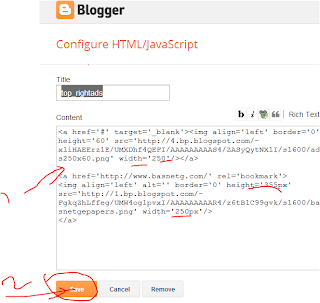
Now add your code and click on save.
The code within this widget is in this format :
<a href='#' target='_blank'><img align='left' border='0' height='60' src='https://blogger.googleusercontent.com/img/b/R29vZ2xl/AVvXsEim3ApV7pIGxbFWVbSRkXdvSfk9vRkSpE0wagVYpmS6P2P-kzobuTaP_GMQsa4ipuT4SNpKBCdIzcRdCr0hvjs4oe4gO1CVkF-CdD-PIlhZlPG0PTapCKQShudYe5hM7STeSA6GqA0RuW4/s1600/ads250x60.png' width='250'/></a>
<a href='http://www.basnetg.com/' rel='bookmark'>
<img align='left' alt='' border='0' height='355px' src='https://blogger.googleusercontent.com/img/b/R29vZ2xl/AVvXsEgbpCUBVnQzTPwrdhoLpk2GGKoTZnNog2hHSdZRudb6tfYfmImCy0gPqieTY-0udxsBDTez5Xe2K_RCFg0eaRQZNq43L8uFwPepao_Pfxap0dM0vdR_gLfh8ub5Cy0b8eZ3yFgXuYNxqW0/s1600/basnetgepapers.png' width='250px'/>
</a>
you can use this code and just change your image link url with red coloured image link.OR make your image and ads image whatever your think and like.
How to add 300x250 ads code

Go to Layout option from your Blogger Dashboard
Now scroll down and find HTML/Javascript as in the image below:
Now click on Edit Button and Paste your ads code inside widget box.
How to change Label/Category Title in the HomepageGo to Dashboard >> Template >> Edit HTML >> ProceedNow find the CTRL+F: <div id='cat-back'> Then you can find code like this : <div id='cat-back'>News <!--news--></div>Each and Every time find <div id='cat-back'> and change the title just after it.That's all Likewise Try to edit yourself.

 आँखा हाम्रो शरीरको सबैभन्दा महत्वपुर्ण ,संबेदनशील र अभिन्न अँग हो । त्यसैले गर्दा हाम्रो आँखाको हेरचाह राम्रो सँग गर्नु पर्छ। आँखालाई सधै स्वस्थ्य राख्नको लागि भिटामिन र अरु पोषक तत्वोयुक्त खाना खाने गर्नु पर्छ। हामीले समयमै आँखाको सहि हेरचाह गर्यौ भने सधैभरी आँखा स्वस्थ्य राख्न सकिन्छ। आउनुस पढ्नुस आँखालाई स्वस्थ्य राख्ने तरिका र तिनका फाईदा...
 हामीले हाम्रो भान्सामा कहिले पनि छुटाउन नहुने हरियो साग सब्जी अनि फलफुलहरु जस्तै साग,धनिया हरियो लसुन ,हरियो तरकारी र फलफुल सधै खाने गर्नु पर्छ। यस्ले हाम्रो आँखालाई चाहिने पोषक तत्व प्रदान गर्दछ। हरियो तरकारी र फलफुलमा केरोटीनाइड मिल्दछ यसले आँखाको भित्री भागलाई स्वास्थ्य राख्दछ।
.jpg)
.bmp)




 Rupee Exchange Rate